Context Item Field
A context item field is a named, typed attribute that records a specific characteristic of an event. Fields are configured independently of context item types and can be reused across multiple types.
How a field behaves within a specific type, such as whether it is required or read-only, is configured on the type, not on the field itself.
Field types
Every field has a type that determines what kind of value it accepts and how it behaves in filters and visualizations.
A text field accepts any free-text input.
A number field accepts a numeric value. Number fields support filtering on ranges and can be plotted on a scatter chart.
An enumeration field presents the user with a predefined list of options to choose from. Because the value is always one of a fixed set, enumeration fields produce consistent, comparable data.
Fields and other properties
This section is relevant for readers whose context items are synced from an external system.
Every value on a context item is stored as a property. A property is a key-value pair. For context items created directly in TrendMiner, the field definition drives the input and the value is saved as a property behind the scenes. The distinction between fields and properties is not visible to the user.
For items synced from an external system, values arrive as raw properties using the keys from that system. A field can be mapped to one of these properties by setting its property key to match the key used by the external system. This surfaces the value in the field interface with the correct display name, type, and formatting.
Properties from an external system that are not mapped to any defined field appear in a separate section called Other properties in the detail panel. This section is only visible when such unmapped properties are present. The values are accessible and can be used for filtering, but they do not carry the display name, type, or formatting of a defined field.
An admin can map an other property to a defined field by creating a field with a matching property key and linking it to the relevant context item type.
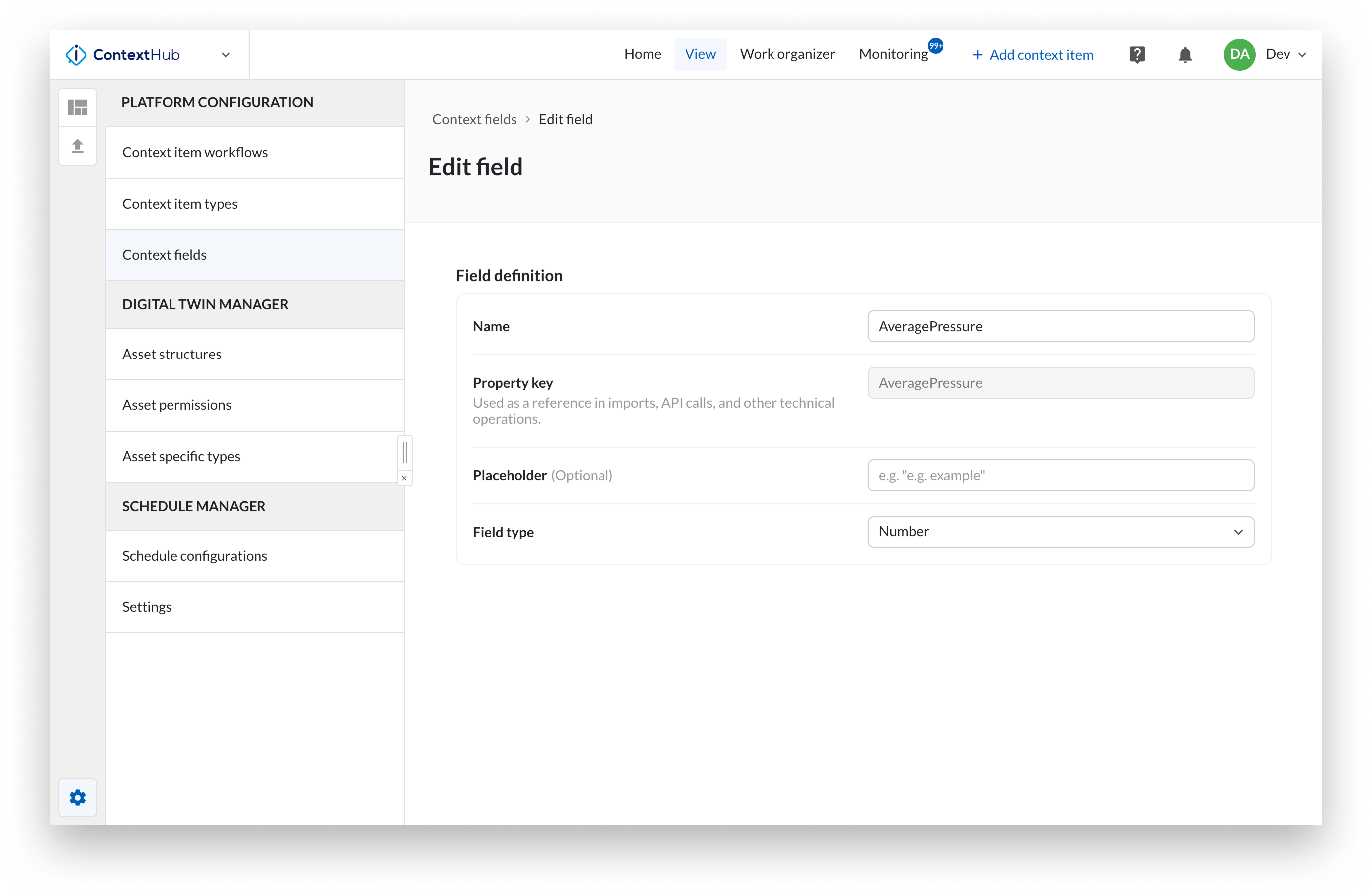
In ContextHub, open the configuration menu by clicking the gear icon.
Select Context item fields from the list.
To add a Field, click Add field.
To edit an existing Field, click the three-dot menu on the type and select Configure field.
Enter a name.
Enter a property key.
The property key must contain at least 4 characters, must not start with a number, and must not contain spaces
Optionally enter a placeholder.
Select a field type: text, number, or enumeration. For enumeration fields, define the list of options.
Click Save.
Warning
A context item field cannot be deleted if it is linked to a context item type or has existing values on context items.