User preferences
You can access your personal settings by selecting User Preferences under your username in the top-right corner of the application.
Here, you can personalize TrendMiner to your liking and adjust how information is displayed to best suit your workflow.
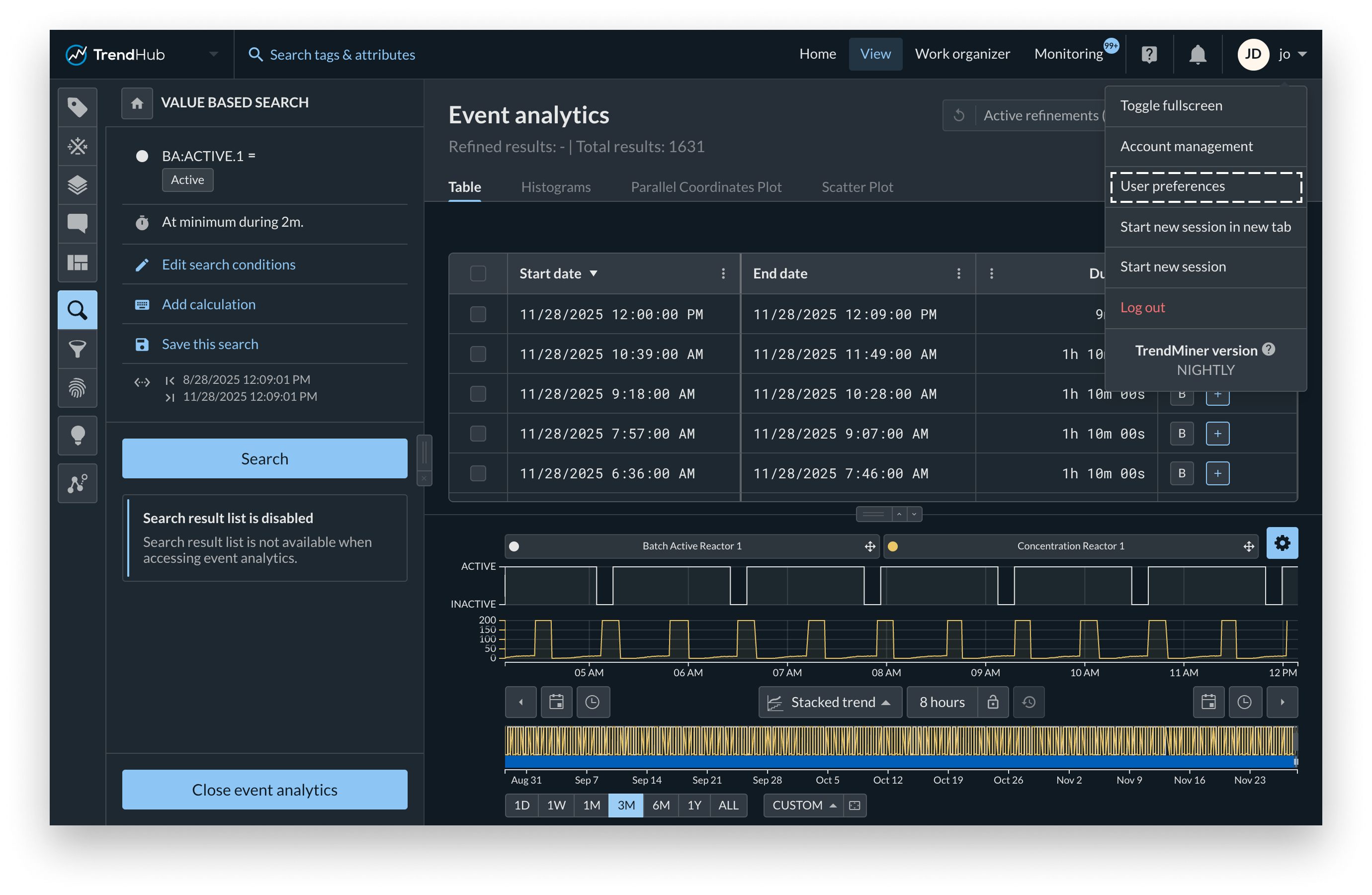
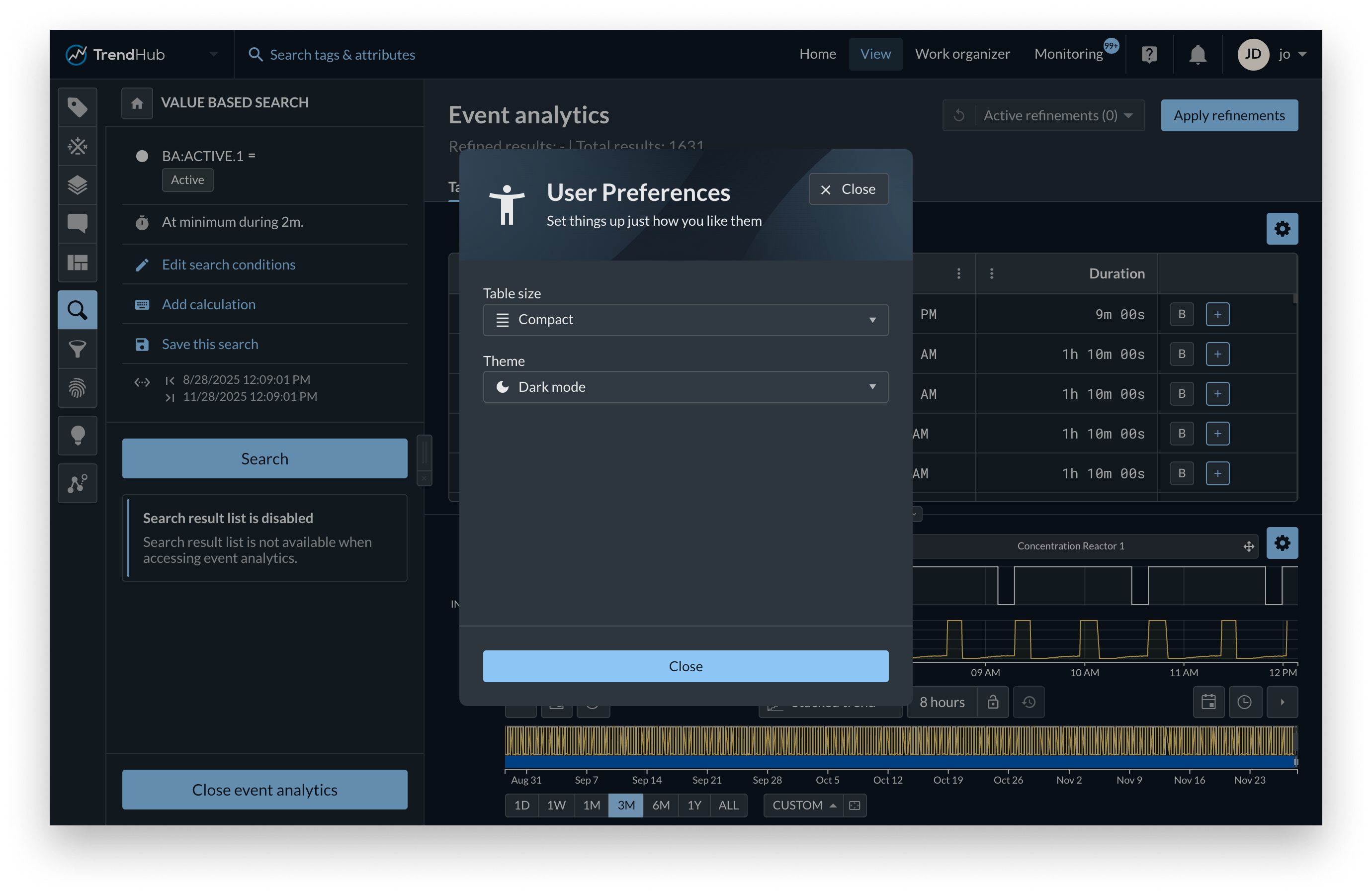
You can adjust the table size setting to change how information is displayed in tables throughout the application. This setting controls the height of all table rows, allowing you to choose how compact or spacious the data appears.
Available settings
Compact
Displays more rows on the screen by reducing row height. Ideal for users who prefer to see as much data as possible at once.
Regular
The default setting, offering a balanced view between readability and information density.
Spacious
Increases the height of each row, creating more space between entries for improved readability and a cleaner layout.
You can customize the visual appearance of TrendMiner by selecting your preferred theme. The theme setting adjusts the color scheme of the entire application, allowing you to choose the look that best fits your environment or personal preference.
Available settings
Use system settings
When selected, TrendMiner automatically follows your operating system’s theme preference. If your system is set to dark mode, TrendMiner will display in dark mode; if it’s set to light mode, TrendMiner will match that.
This option is ideal if you want your applications to maintain a consistent appearance.
Light mode
Light mode uses bright backgrounds and darker text for maximum contrast. This theme is ideal for use in well-lit environments or offices with strong daylight, as it improves readability and provides a clean, modern look.
Dark mode
Dark mode switches to a dark background with lighter text, reducing glare and eye strain in low-light conditions. Many users find this theme more comfortable during extended use or when working in darker environments.
Color adjustment in Dark mode
To ensure that colors remain clear and recognizable, TrendMiner applies a color adjustment process that automatically adapts selected colors for dark mode. When you use the color picker, the system gradually increases the brightness of a color until it meets the required visibility and contrast standards for dark backgrounds.
Both the light mode and dark mode color variants are always available. In dark mode, the color picker visually indicates the adjusted color difference so you can see how the color will appear in both themes.
Thanks to this intelligent color adjustment, work items can be shared and collaboratively used by both light mode and dark mode users without any loss of clarity or visual consistency.