TrendMiner Agent
Note
The TrendMiner Agent requires a license and must be assigned to your user account before you can use it.
TrendMiner brings AI to where you already work. Next to using TrendMiner tools and data in chat apps like Microsoft Copilot, Claude, or ChatGPT through the TrendMiner MCP connection, TrendMiner now also offers a native TrendMiner Agent.
The Agent is embedded directly in TrendMiner, working alongside you in the browser. It understands what is on your screen and helps you build out an investigation as you go.
Opening the Agent
Note
Access to the TrendMiner Agent is assigned per user account. If you do not see AI Agent in the top bar or left sidebar, contact your administrator to request AI access for your account.
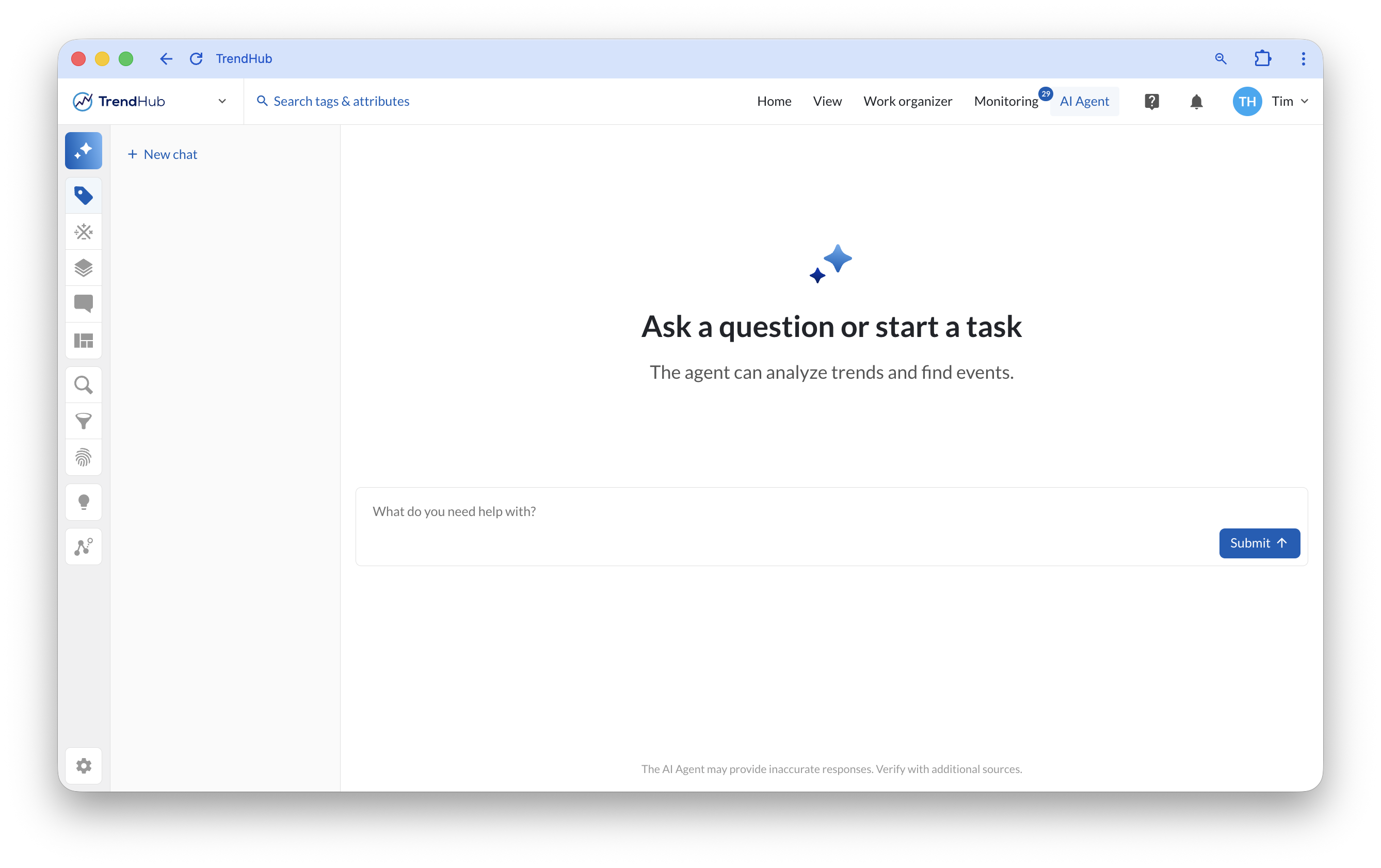
Click AI Agent in the top bar of TrendHub to open the Agent panel.
Click New chat to start a new conversation.
Enter your question or task in the input field, and click Submit.
What the TrendMiner Agent can do
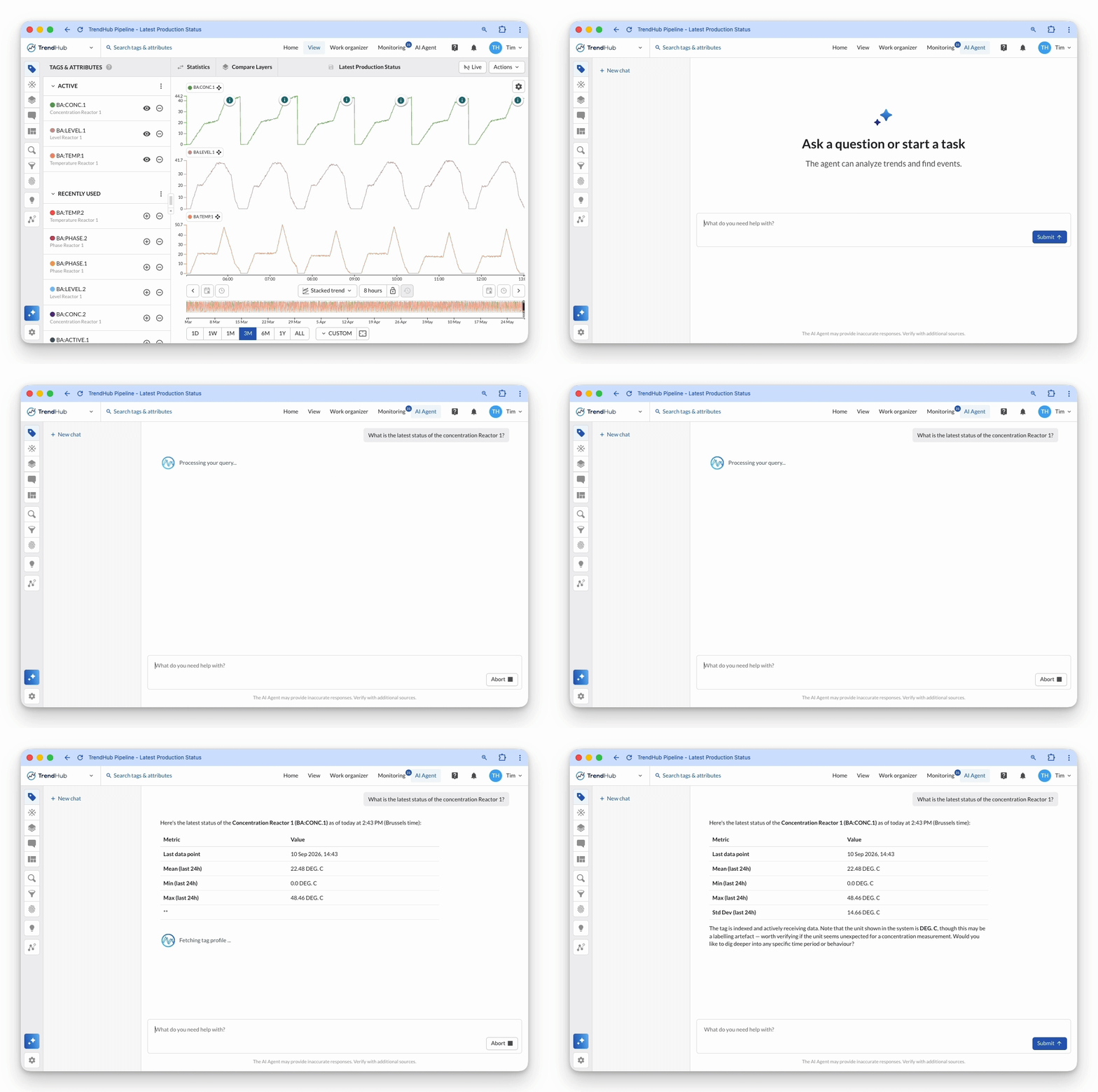
Unlike a chat window on the side, the TrendMiner Agent doesn’t just answer, it interacts with the TrendMiner application on the screen in front of you. Everything listed below is something you could also do yourself in TrendHub or ContextHub. The Agent simply lets you ask for it instead.
Analytics tools, for querying and analyzing your data:
Navigate asset structures, search tags, and index info.
Run value-based searches to find events matching specific criteria.
Fetch tag data, calculate aggregations, and run deeper time-series analyses.
Search Context Items and navigate Context Types.
Interactive tools, for acting directly in TrendMiner:
Open views and navigate directly in TrendMiner.
Add relevant tags to your TrendHub view, and change the time range.
Search and filter a Context view.
Tip
The Agent’s set of analytics and interactive tools is continuously expanding. New tools and capabilities will be added in future releases.
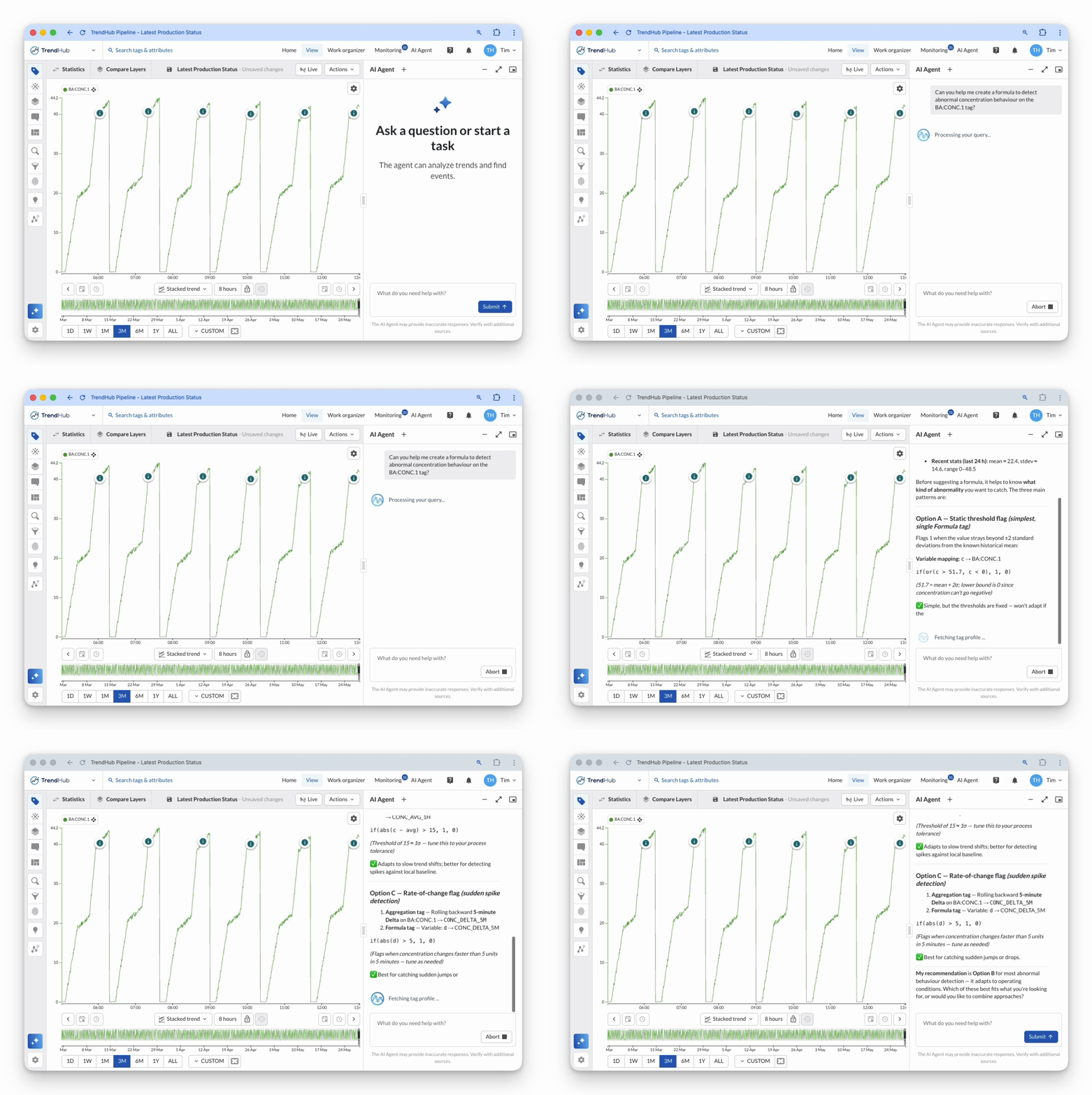
Ask the Agent how to use TrendMiner
The Agent also acts as your personal TrendMiner expert. It answers practical “how do I” questions about working in TrendMiner, for example explaining how to build a formula or guiding you through a feature. Ask the question directly instead of browsing through documentation.
Display modes
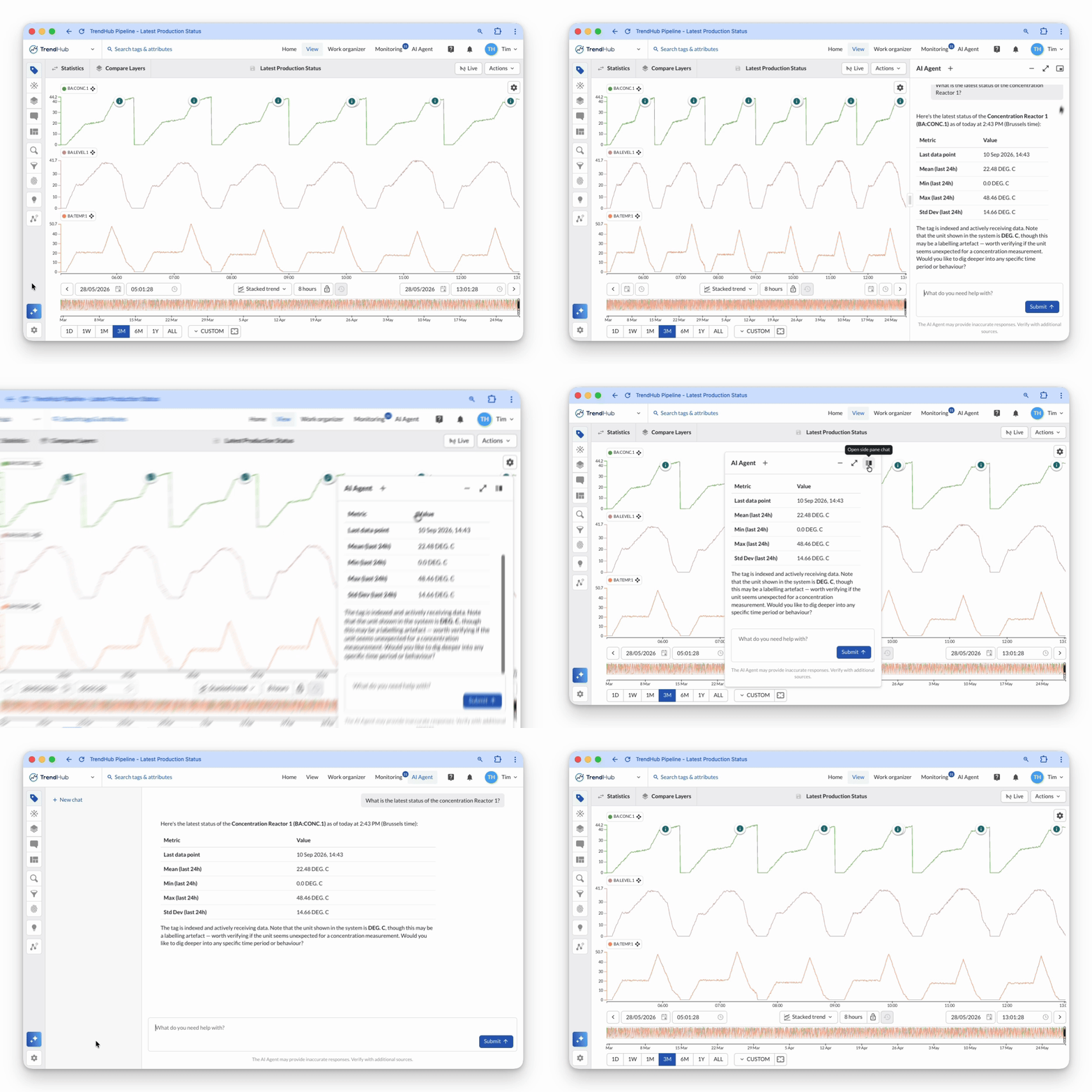
The Agent panel can be displayed in three ways. Switch between them using the icons in the top-right corner of the Agent panel, and choose whichever layout gives you the clearest view of both your visual and the Agent’s response.
Sidebar: the default mode. The Agent is docked in a fixed panel next to your TrendHub view, so your trends and the Agent’s responses sit side by side.
Floating: the Agent detaches into a smaller window that you can freely drag and position anywhere on screen.
Move it over to whichever spot keeps both your chart and the Agent’s answer in view, for example next to the specific trend you’re investigating.
Full screen: the Agent expands to fill the entire browser window, giving you the most reading space for longer conversations. Your TrendHub view is hidden while in this mode.
Bring your own model
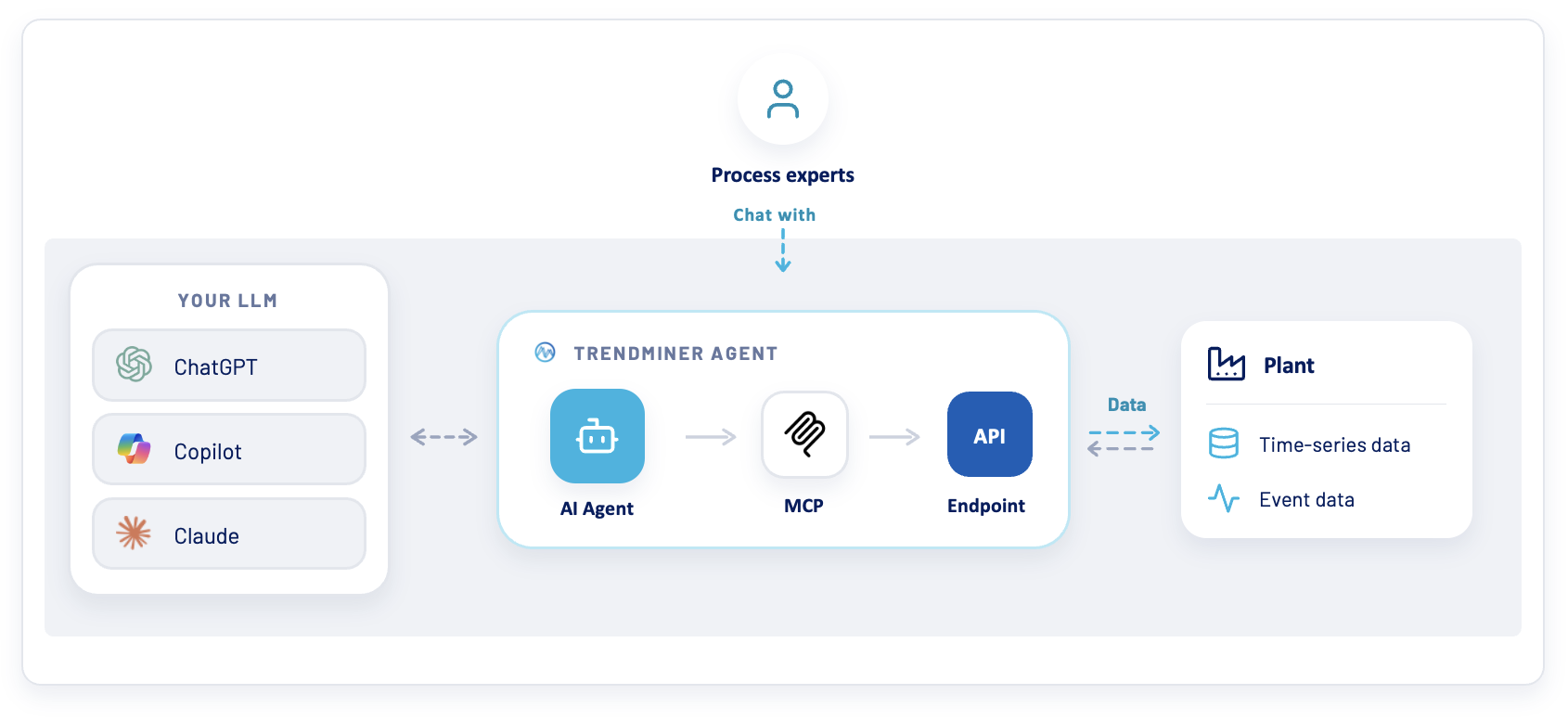
The Agent connects to the large language model (LLM) of your choice. Bring in recognizable models such as Claude Opus, Claude Sonnet, and Claude Haiku through a direct Anthropic connection, or GPT-5.6 Luna and GPT-5.6 Sol, and any other model available through your organization’s Azure AI Foundry model catalog. Support for AWS Bedrock and OpenAI as LLM providers will follow later.
These are providers that your organization already trusts, so there is no new vendor to onboard, and your data remains within your company landscape.