Mobile dashboards
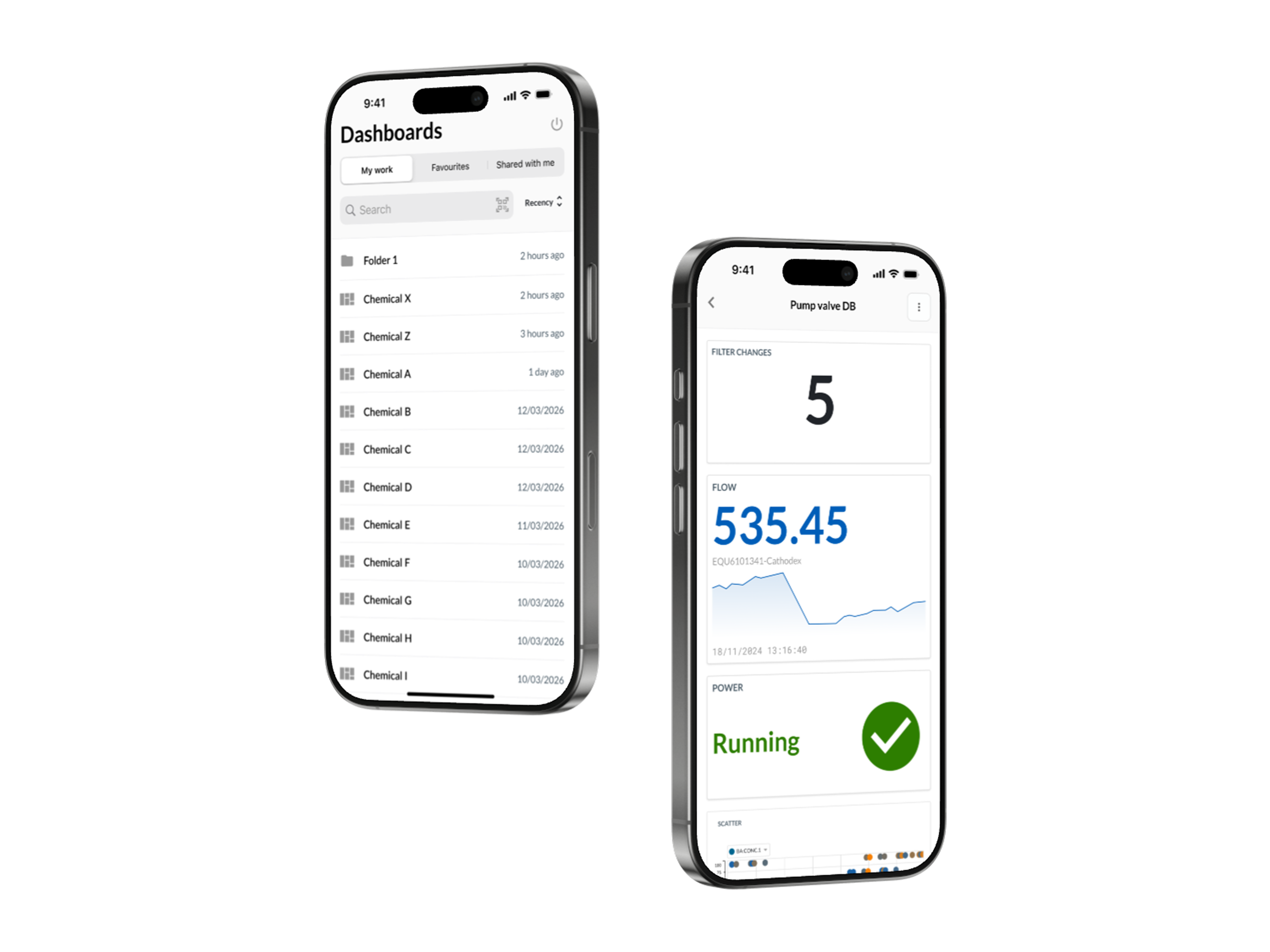
Mobile mode is a view-only mode that gives mobile phone users a simplified dashboard experience optimized for small screens.
When you log in to TrendMiner on a phone, you are automatically redirected to the mobile dashboard overview. From there, you can browse your dashboards, open one in mobile mode, adjust the time frame, and inspect context items. Editing dashboards, tiles, or context items is not possible in mobile mode and remains available on desktop.
Note
Mobile mode is web-based, there is no separate app to install. Tablets continue to use the standard dashboard modes. If you prefer the full desktop interface on your phone, use your browser's built-in Request Desktop Site option (available in Chrome, Safari, and Edge).
Dashboard overview
After login on a mobile device, you land on the mobile dashboard overview. The overview shows three tabs: My work, Favourites, and Shared with me. Each tab displays a list of dashboards and folders, with the dashboard or folder name and the last used date. The list is sorted by last used (newest first) by default.
Search
A search field is visible at the top of the dashboard overview. Tap the field and start typing to filter the list to matching dashboards and folders.
Sorting
Tap the Order by link, right-aligned on the dashboard overview, to open the Sort bottomsheet. The available options are Name - A to Z, Name - Z to A, Recently used - Newest, and Recently used - Oldest. The active option is highlighted. Tap Cancel to keep the current sort.
Scanning a QR code
A QR code icon is shown inside the search field on the dashboard overview. Tapping the icon opens the device camera. Pointing the camera at a TrendMiner dashboard QR code opens that dashboard in mobile mode. This is useful in the field, for example when a QR code on a piece of equipment points to its monitoring dashboard.
If the scanned code is not a valid TrendMiner dashboard QR code, you are returned to the dashboard overview. If the device blocks camera access, the operating system shows its standard permission message.
Time frame
The mobile time frame is a simplified version of the desktop time frame, optimized for phone screens. A time frame bar is shown under the header in portrait mode. The bar hides itself when you scroll down within a dashboard and reappears as soon as you scroll back up. In landscape mode the bar is hidden so the dashboard can use the full screen width.
When you open a dashboard, the Default time frame configured on the dashboard is applied.
Tapping the time frame bar opens the Time frame bottomsheet. The bottomsheet contains the following options: 1H, 1D, 7D, TODAY, and CUSTOM. Selecting a preset applies it immediately and closes the bottomsheet.
Dashboard actions
Tapping the three-dot menu in the top-right of the dashboard header opens the Actions bottomsheet. The bottomsheet contains the following actions:
| Custom time frame When on, the custom time frame row is visible. When off, the row is hidden. |
| Live mode When on, the dashboard refreshes tiles automatically with the latest data. When off, live mode is disabled. |
| Refresh Manually reloads the dashboard data. |
Tile interactions
Tiles use the same responsive layout as in Edit, Presentation, and Embed mode, so they adapt to the width of a phone screen without horizontal scrolling.
Clickthrough is not supported in mobile mode. Tapping a tile title or hovering for the arrow icon, as on desktop, does not open the underlying data. The only tile interaction available on mobile is opening a context item.
Context item detail
Tapping a context item on a tile opens its detail view in mobile mode. The detail view shows the same fields as in other DashHub modes, with the field label and value on separate lines for better readability on a phone screen.
The context item detail is view-only on mobile. Comments, attachments, and approvals are visible but cannot be added or edited. Use the chevron in the top-left of the header to return to the dashboard.
Logging out
A power icon is positioned on the right of the header on the dashboard overview. Tapping the icon opens the logout modal, where you can confirm logging out of TrendMiner.