Context View Actions
At the top right of the ContextHub interface, you will find the Actions button. Clicking this button opens a menu containing several options that allow you to manage and interact with your views.
From here, you can discard or save changes, edit details, start a new view, export data, open the view as a context item search, add the view to a dashboard, share it with others, or delete it entirely.
Discard changes
If you are not satisfied with the changes made to your view, you can use this option to revert the view to its original state.
Refresh data
If context items in your view have been updated or new items have been added since the view was opened, use this option to refresh the content and display the most recent data.
Save
Select this option to save any modifications made to your view.
Save As
Use this option to save your view for the first time or to create a copy of an existing view. You will be prompted to enter a name, description, and desired location for the view.
Edit details
Use this option to edit the name or description of your view, or to move it to a different location.
Start new view
Select this option to create a new view.
Add to dashboard
Once your view has been saved, you can use this option to add it to a dashboard. A side panel will open where you can either create a new dashboard that includes the view or add the view to an existing dashboard.
Share
Use this option to share a view directly.
Export As - You can choose to export your ContextHub view in the form of a CSV file. After you choose the “Export As” option – the export box will appear. Select your “Timezone” and preferred export format – XLSX, CSV (Comma separated), CSV (Semicolon separated). Finally, you can click "Generate export". Export runs in the background, notices will alert the user to completion of the export. The exported file will contain a link to the TrendHub profile.
Delete view
Use this option to permanently remove the selected view. A confirmation message will appear asking you to confirm the deletion before proceeding. Once confirmed, the view and all its associated configurations are permanently deleted and cannot be recovered.
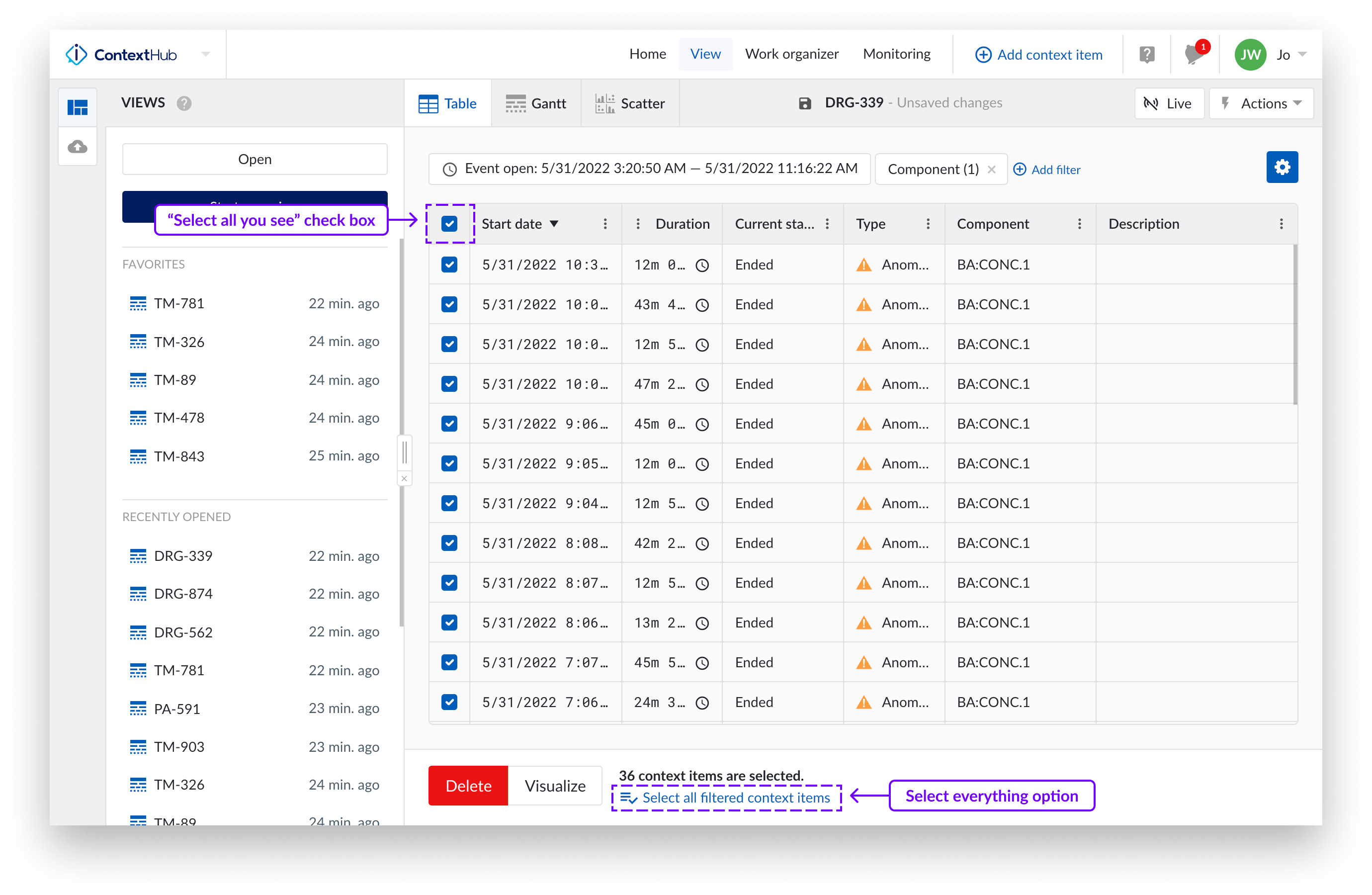
In addition to deleting individual items, you can also perform a bulk delete action to remove multiple context items at once.
To start a bulk delete, you can click the checkbox in the table header to select and delete the items currently visible in your view. You can also choose "Select all filtered context items" to delete all items that match your active filters, or manually select individual items one by one before deleting them.
After selecting the items, click the delete button to confirm.
When you delete all filtered items, you will see a confirmation message: "Are you sure you want to permanently remove all filtered context items? This action cannot be undone."
If your selection includes more than 10,000 items, only the first 10,000 will be deleted. A warning will appear to let you know that additional items remain.
If the system is already processing the maximum number of bulk delete requests, an error message will appear: "The system is currently processing the maximum number of bulk delete requests. Please wait and try again later."
This queue-based system ensures that bulk deletions are handled safely and efficiently, keeping the platform stable even under heavy load. Once your bulk delete request has been processed, you will receive a notification confirming whether the deletion was successful, partially completed, or failed
Warning
Once deleted, the context items are permanently removed and cannot be restored.