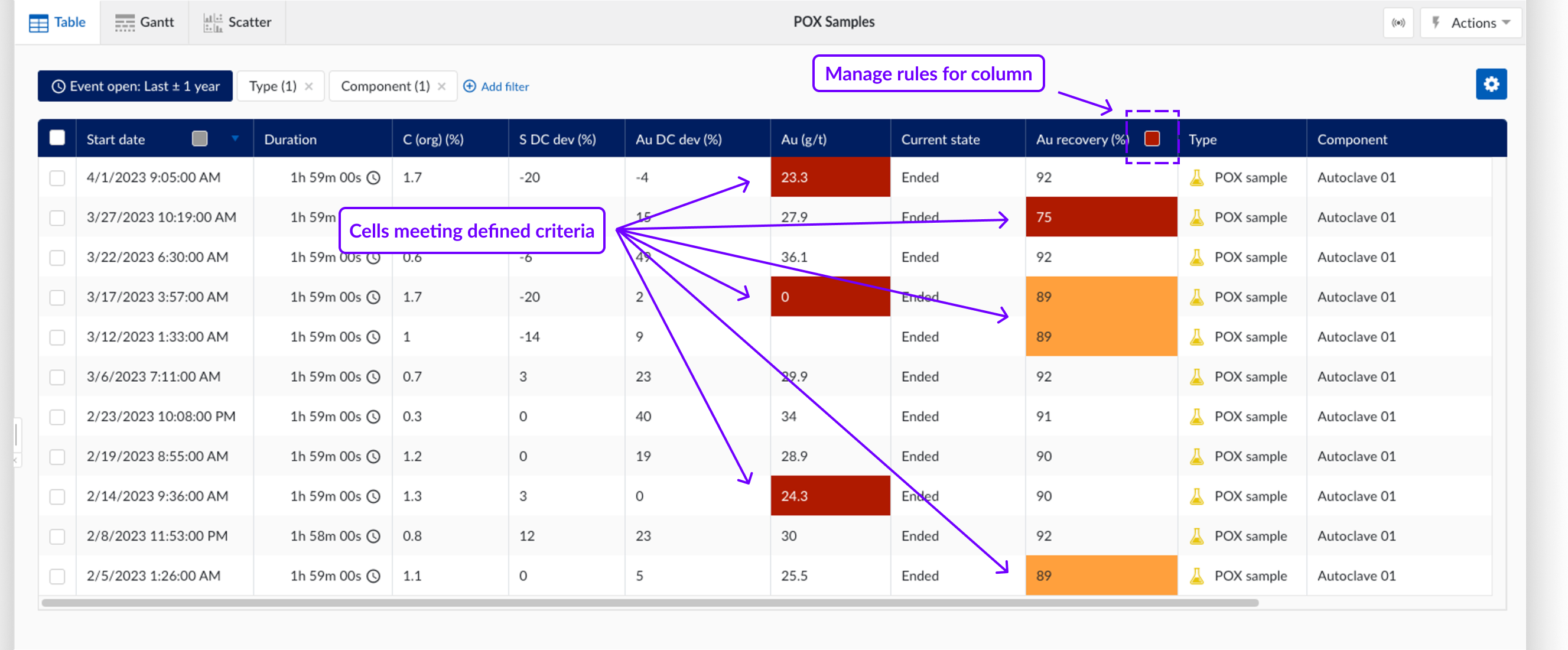
Conditional formatting
The conditional formatting feature allows you to format the background colour of cells of the ContextHub Table view, based on a set of defined rules.
Where formatting is applied
Conditional formatting is applied in the table view only. It is not applied in the Gantt chart or scatter plot.
When a context item detail panel is opened from within the table view, the formatting is also applied there. If the detail panel is opened from a different location, no conditional formatting is applied.
Setting up rules
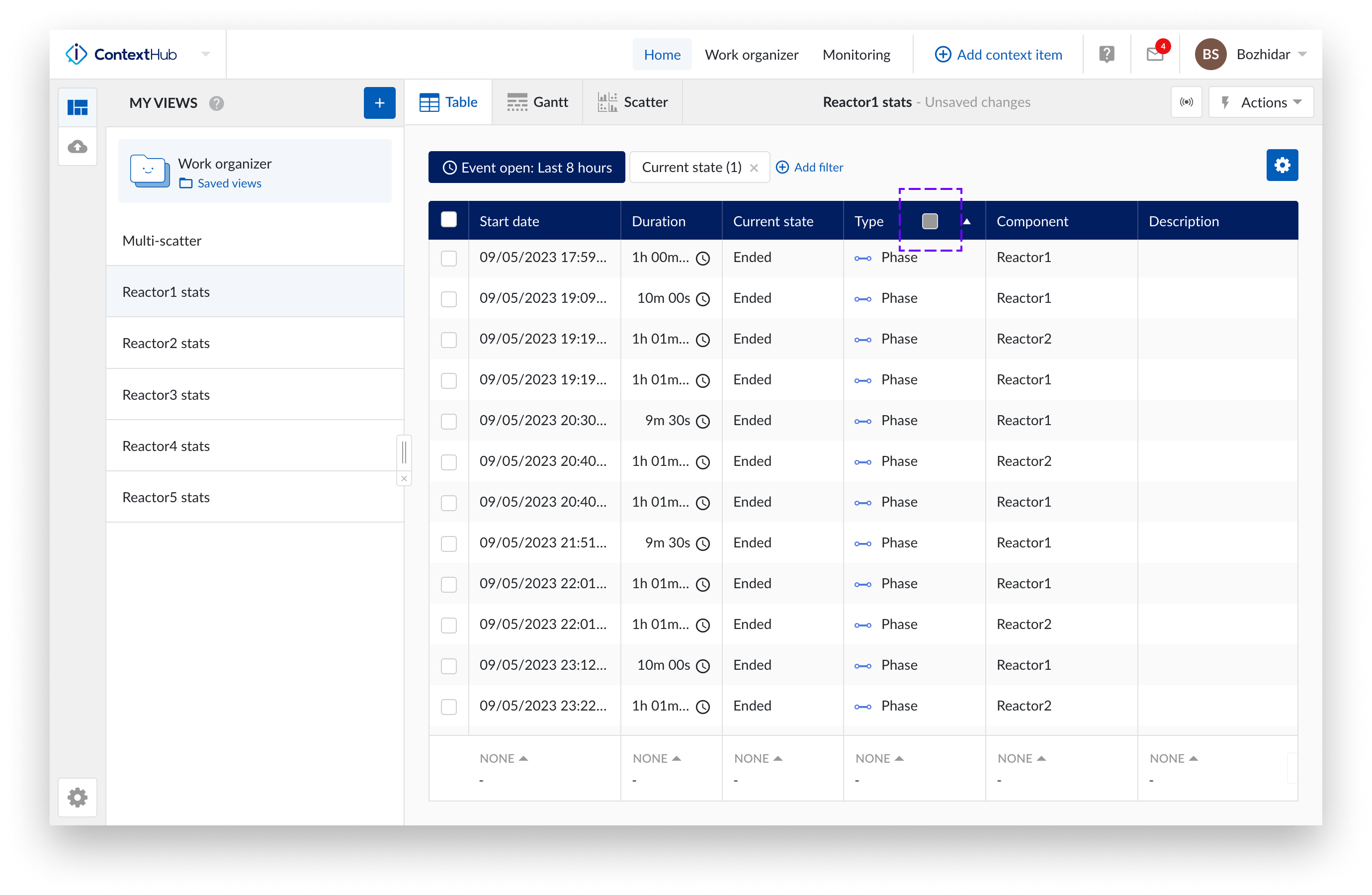
To configure conditional formatting for a column, click the three-dot menu in the column header and select Conditional formatting. When conditional formatting is applied to a column, a red dot appears in the column header to indicate that rules are active.
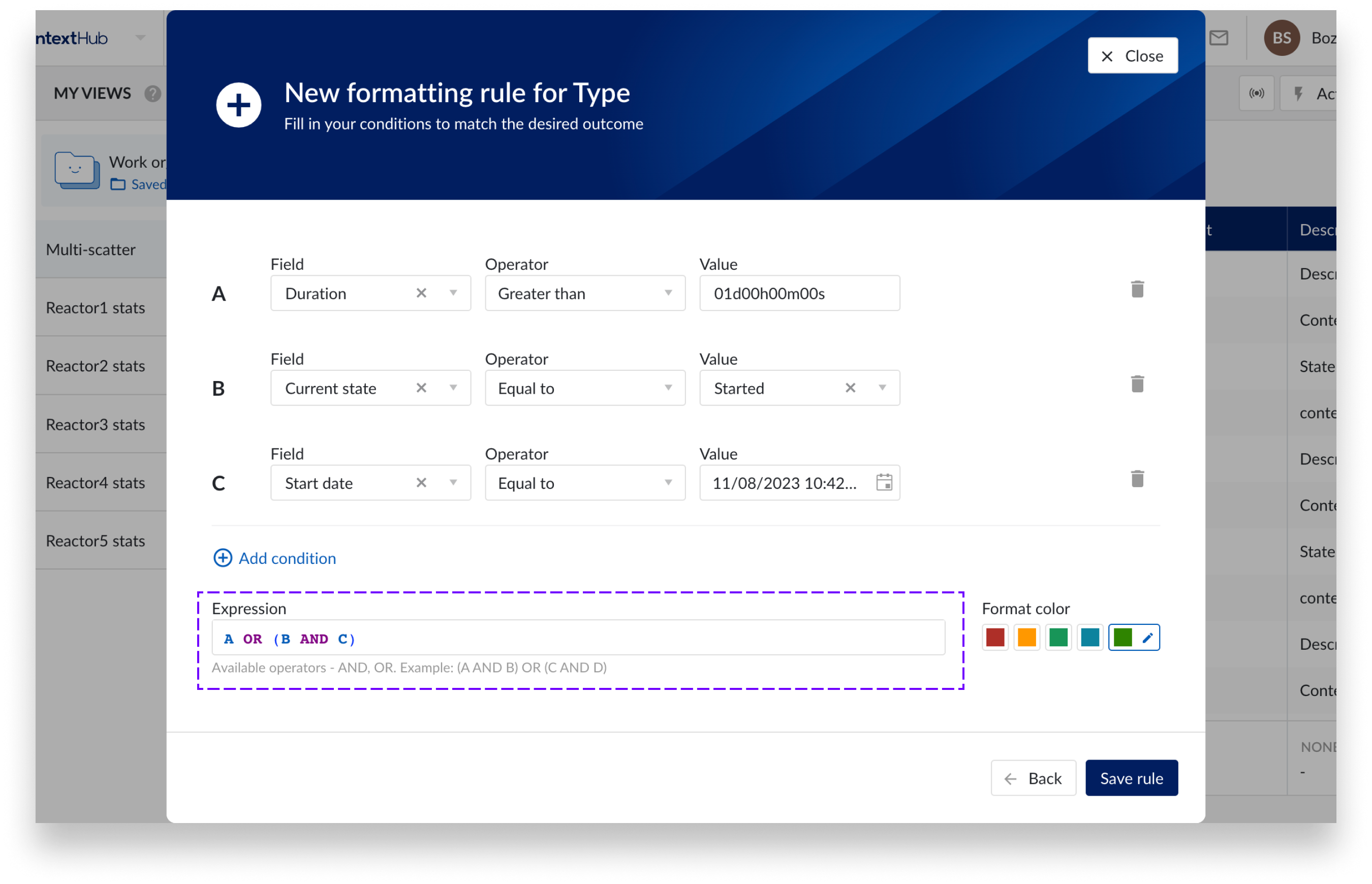
Multiple conditions forming an expression can be defined in a rule. The operators for building the expression are “AND”, “OR” and brackets - “(“, “)”.
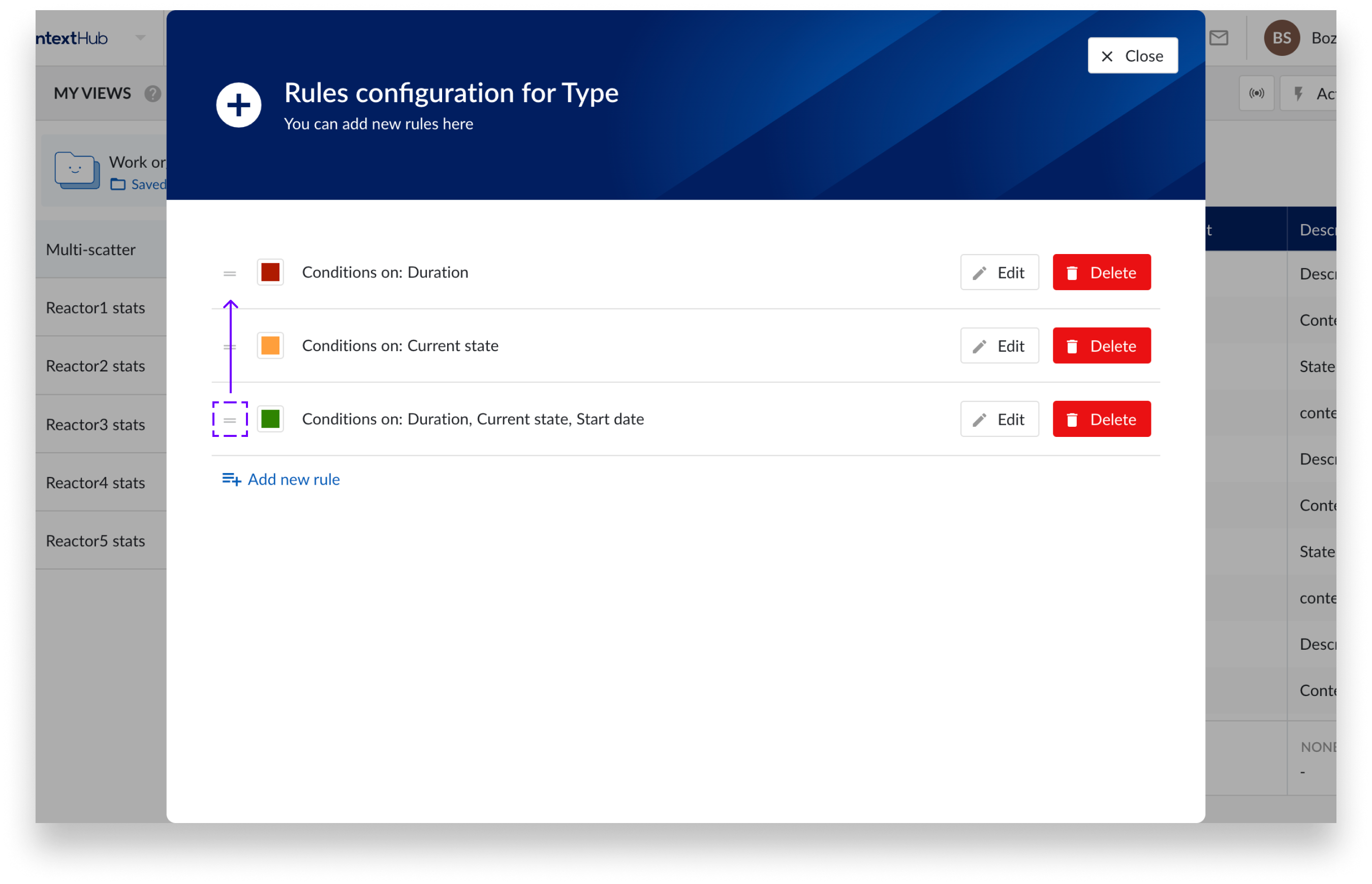
Multiple rules can be applied per column. The rules can be arranged by drag and drop, to define a rule hierarchy with the topmost rule taking precedence. Rules can be made dependent on the values of other columns.
When a value from a column satisfies a rule – its background colour changes to the colour defined in the rule.