Calculations on search results
Calculations on search results allow you to compute summary metrics for specific tags across the time range covered by your search results. For example, you can calculate the maximum temperature reached during each batch of a product, based on historical search results.
You can define up to 30 calculations per search.
How to add and manage calculations
After performing a search, click Add calculation in the search summary. This opens a modal with a step-by-step flow:
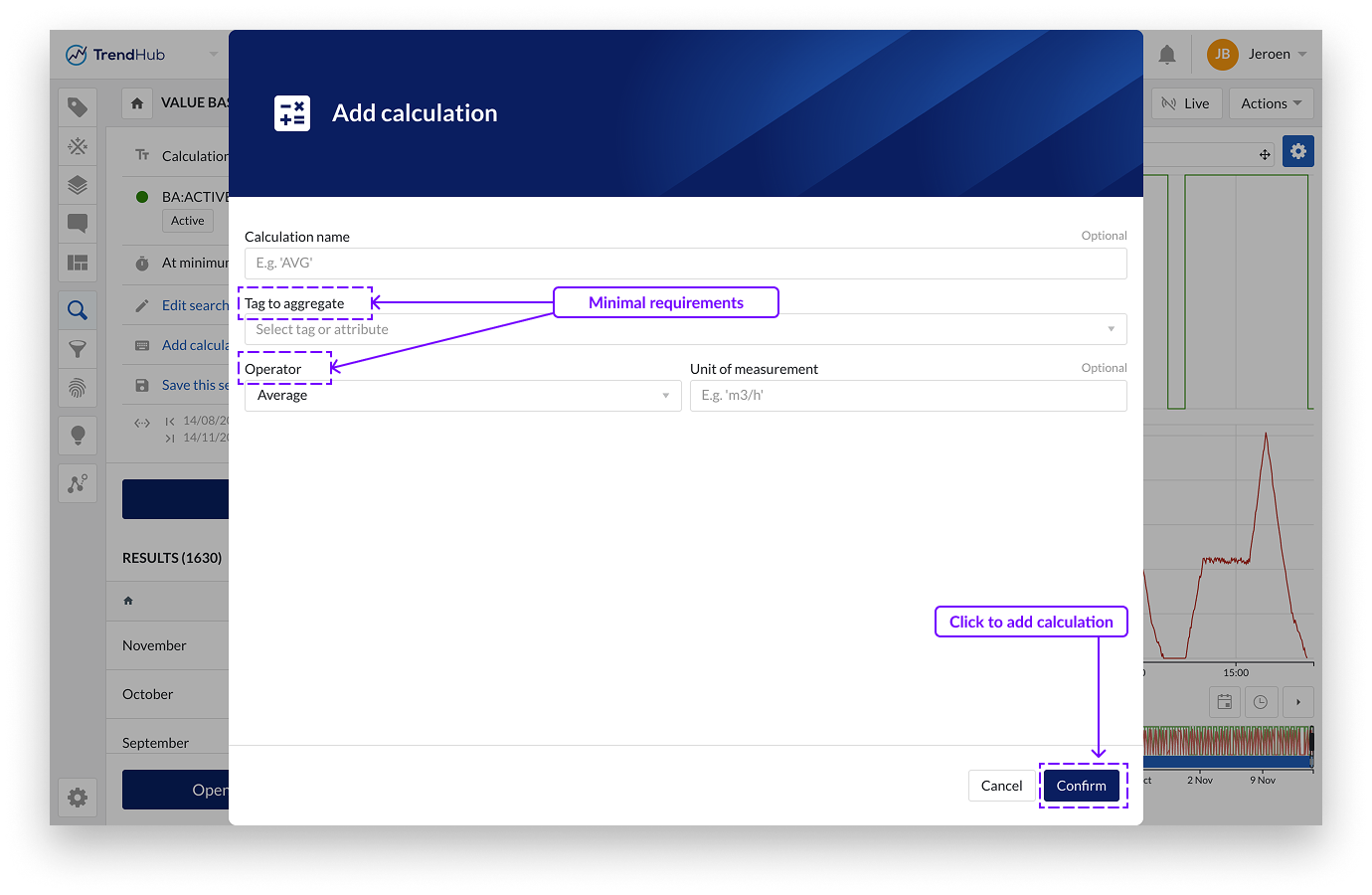
Add calculation step
Here, you define a new calculation:
Tag to aggregate: Choose from active tags or search for others.
Operator. Choose one of the following available calculations:
Average
Minimum
Maximum
Range (max - min)
Start value
End value
Delta (end - start)
Integral: Calculates the area under the curve. When using integral, you must also select the time unit of the source tag.
Standard deviation
Optionally, assign a name and unit of measurement. If no name is provided, TrendMiner will automatically generate one by combining the source tag and selected operator.
Click Confirm to add the calculation.
Note
If you select tags which are not part of the active tag list, these tags will not be added to the active tag list. Also, when opening a saved search, only the tags which are used in the search condition are added to the active tag list.
Manage calculations
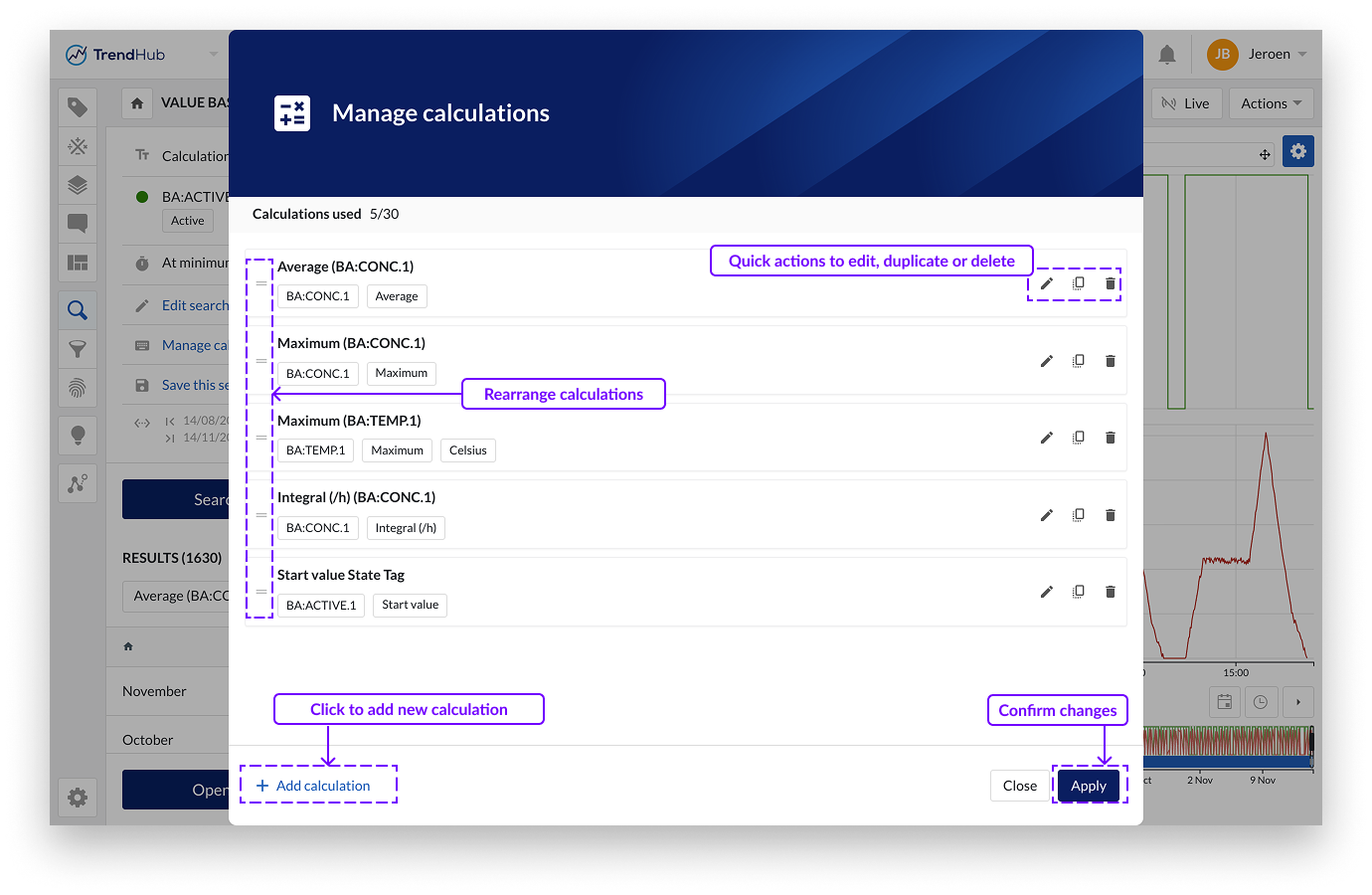
This comprehensive overview lets you manage all defined calculations. The following actions can be performed:
Rearrange the order of calculations by dragging and dropping a specific calculation.
Edit a calculation — opens the Add Calculation step with prefilled values.
Delete a calculation.
Duplicate a calculation — combine this with the edit option to create, for example, 10 different calculations on the same tag.
Add new calculations via the Add calculation button.
Note
The calculations will be saved as part of the search definition when saving the search. This allows you to easily reproduce your complete analysis. For more information about creating searches please refer to the Search overview article.
Executing calculations
As soon as you click Apply, the calculations are performed and presented in your search results. Calculations are now part of your search definition and will be recalculated each time you execute the search.
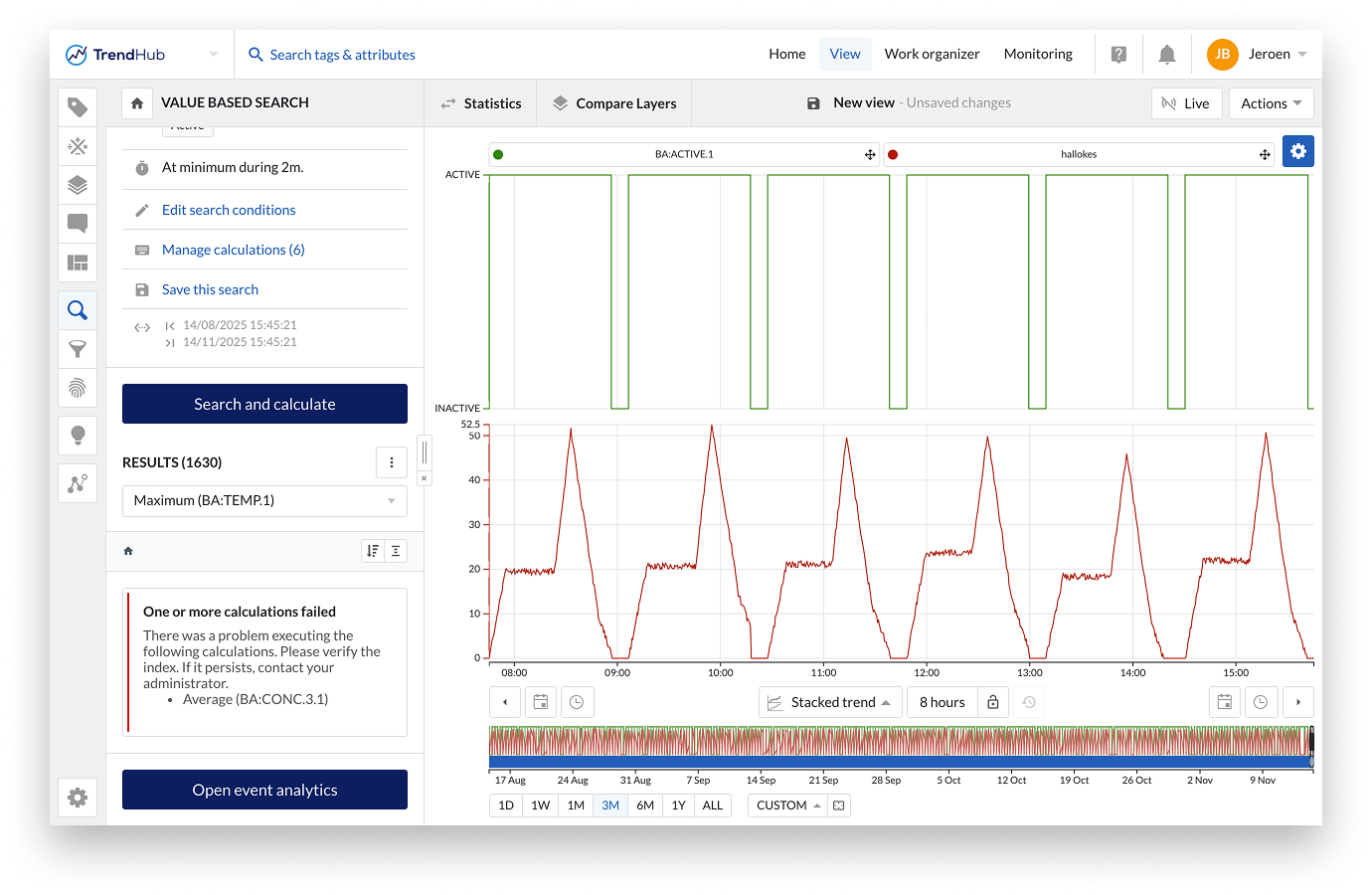
Tags used in the calculations are not necessarily part of the search conditions as well. In the unlikely case that these tags have never been used before, they may not be indexed yet. In this situation, a warning message will be shown to indicate that TrendMiner was unable to perform the calculation. To resolve this, simply add the tag to the active tag list to initiate indexing.
Leveraging the calculations
Within the search result list
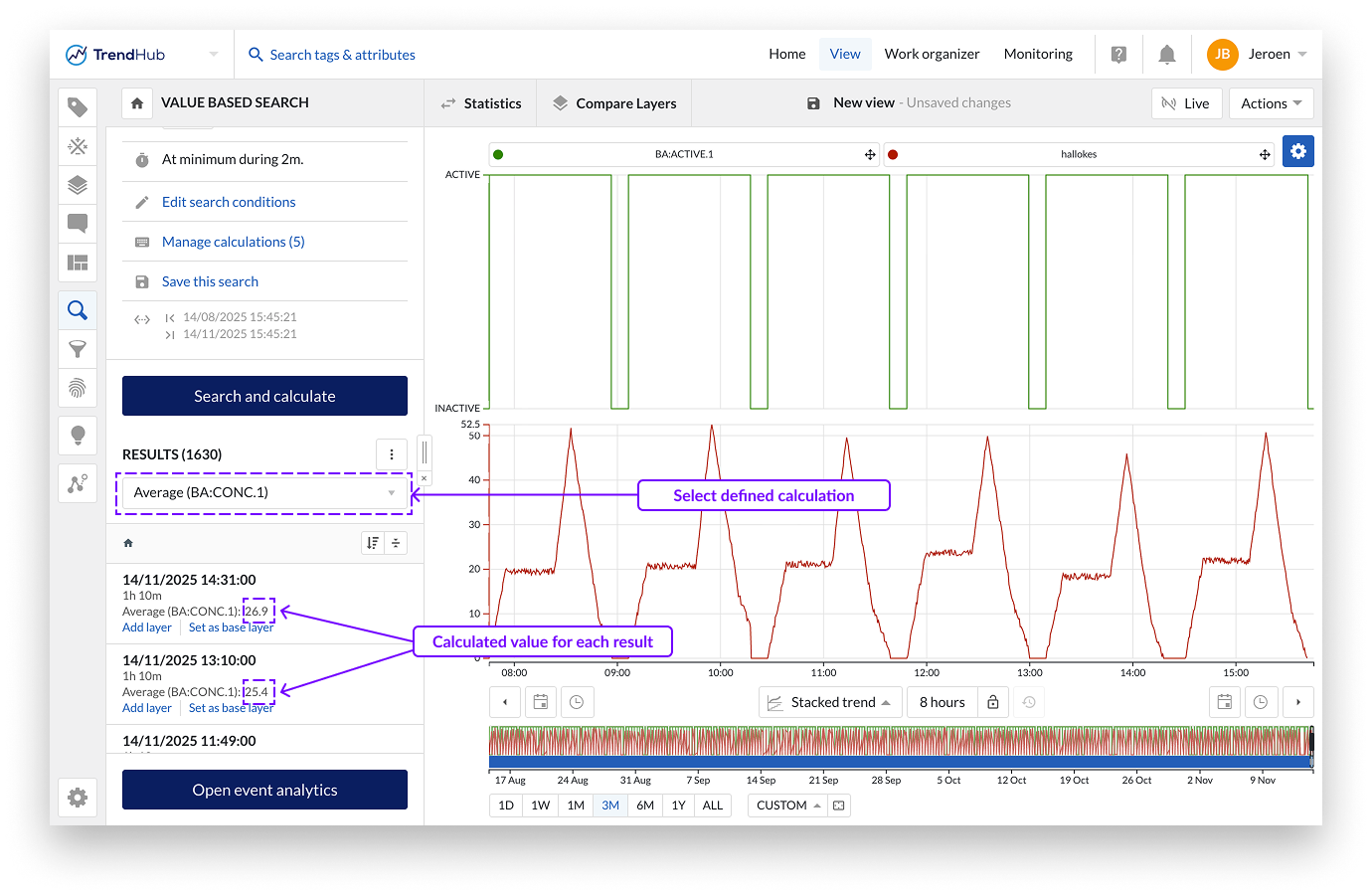
If calculations are available, an additional dropdown will appear on top of the search result list. It will contain all defined calculations. By default the first calculation is selected.
The value of the selected calculation will be shown on each search result and the result list can now be sorted based on the selected calculation. You can also map available calculations to specific context fields when creating context items. Please refer to this article to learn how to perform these actions.
Within Event Analytics
Event analytics allows you to analyze search results based on aggregated values of each search result. The start date, end date and duration, or score (in case of a similarity search) of each result is combined with the defined calculations on top of search results and can be presented in different visualizations. Please refer to the Event Analytics article to deep dive into its capabilities.